Notifications
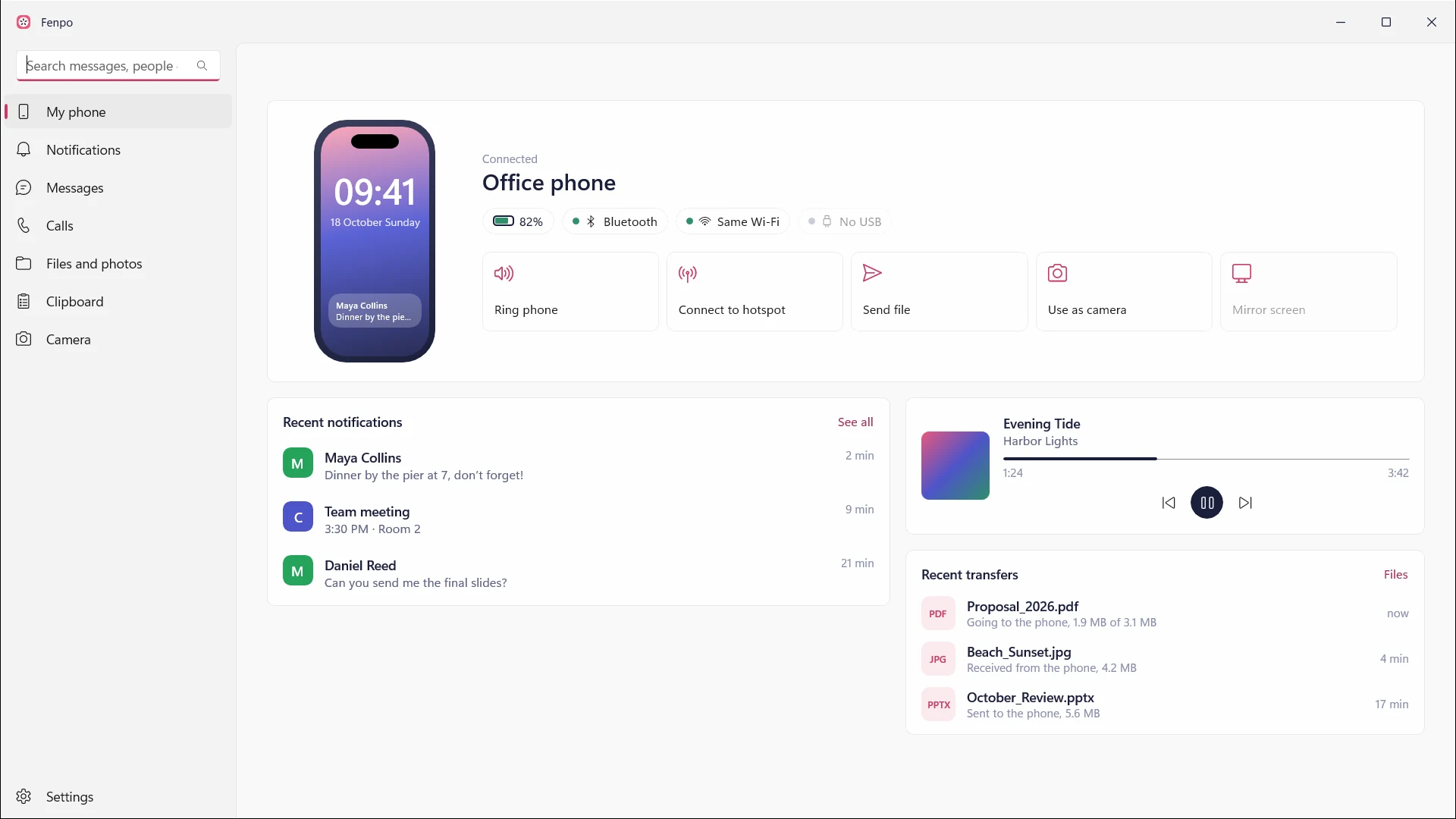
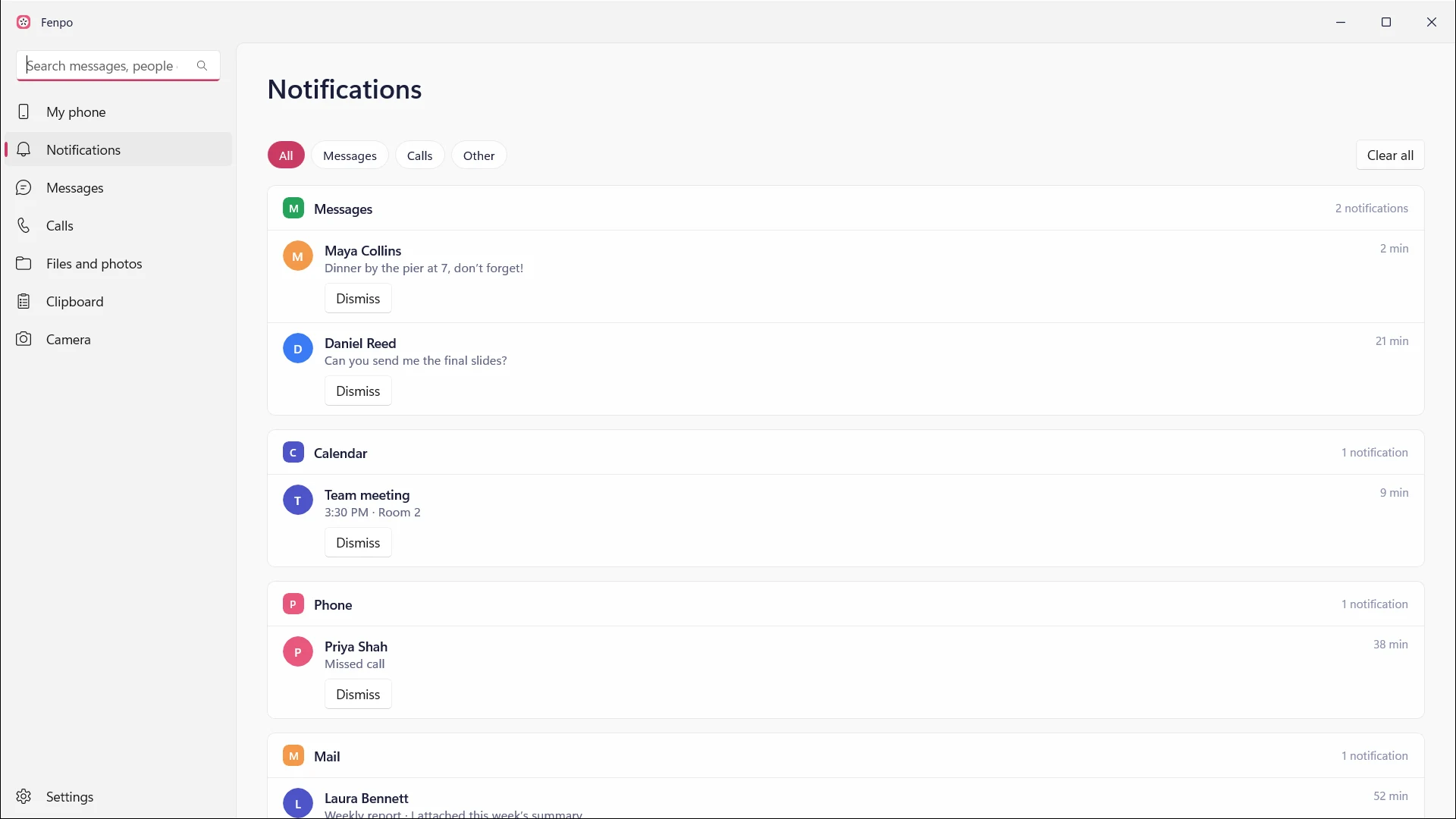
Every notification on your phone shows up as a Windows notification. Dismiss it or reply right there.
On iPhone you don’t even need the app.For Windows, iPhone and Android
Notifications, messages, calls, clipboard, files and camera flow between the two on their own. No cloud, no account.
Where the name comes from
A window and an apple.A small bridge that sits two devices at one desk.
Your phone, on the desk
Every notification on your phone shows up as a Windows notification. Dismiss it or reply right there.
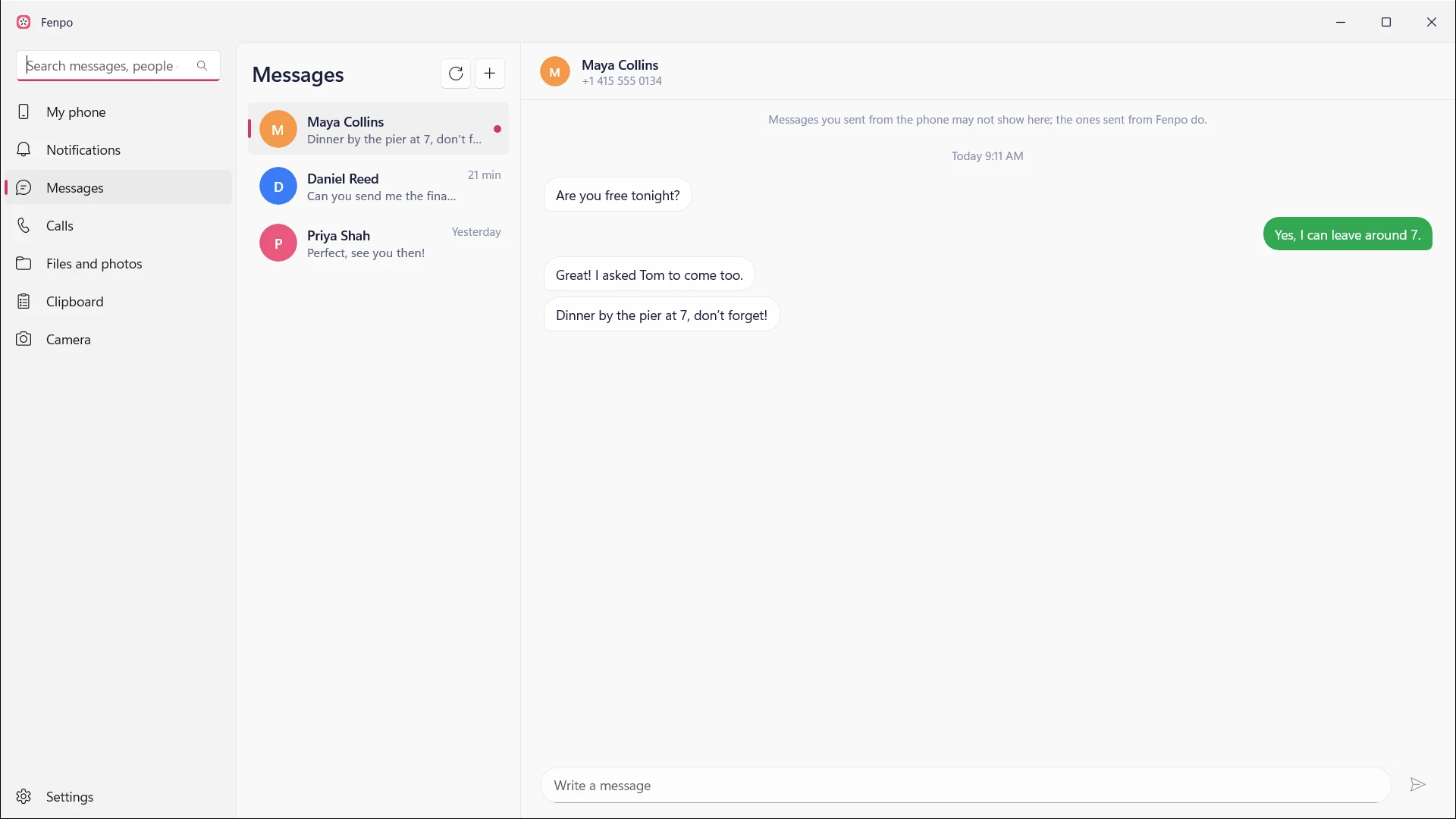
On iPhone you don’t even need the app.Read and write your messages with the PC’s keyboard. No reaching for the phone.
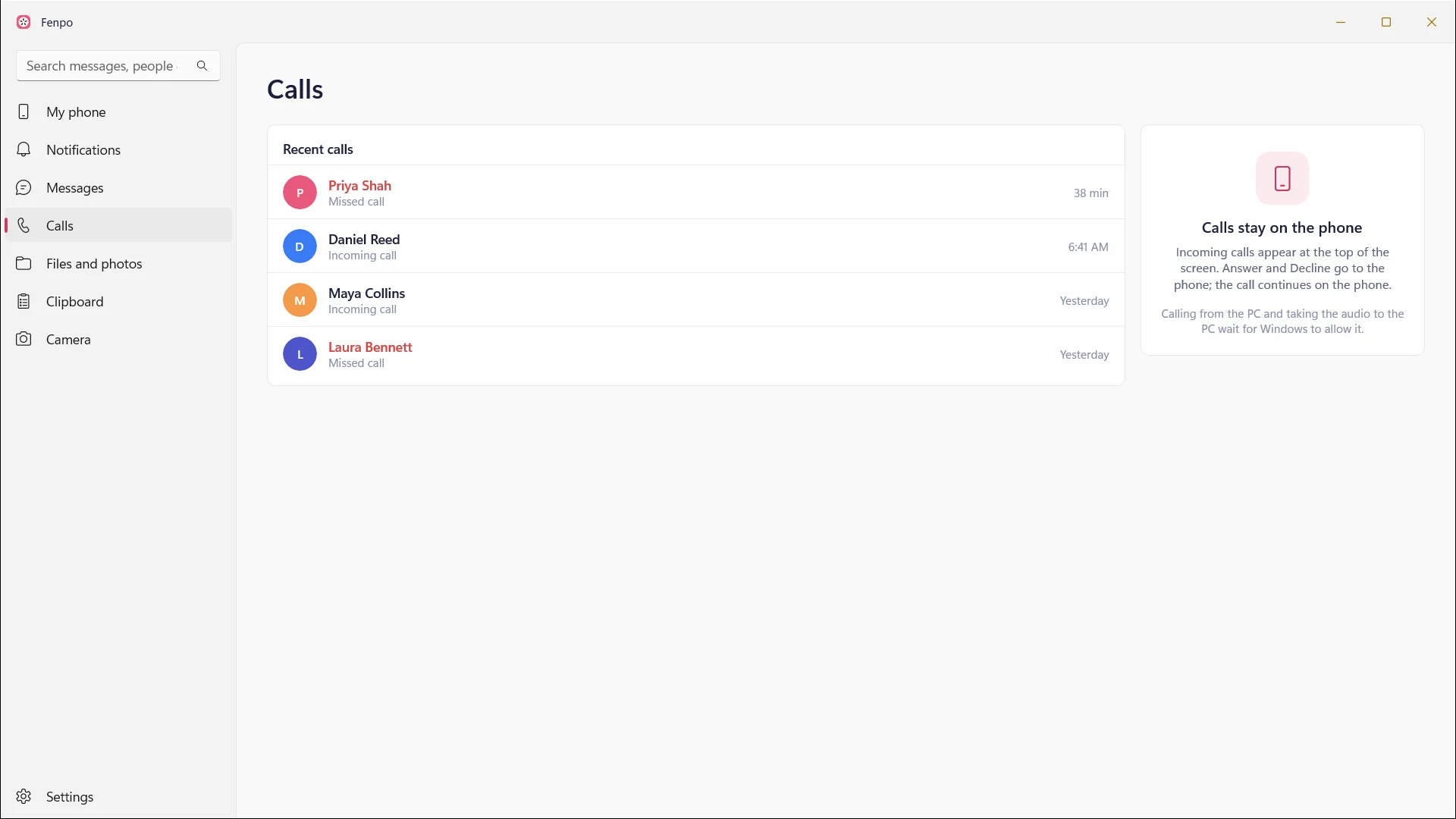
Messages go out from your phone’s own number.Incoming calls appear at the top centre of the screen, in the Fenpo Island. Answer or decline from the PC.
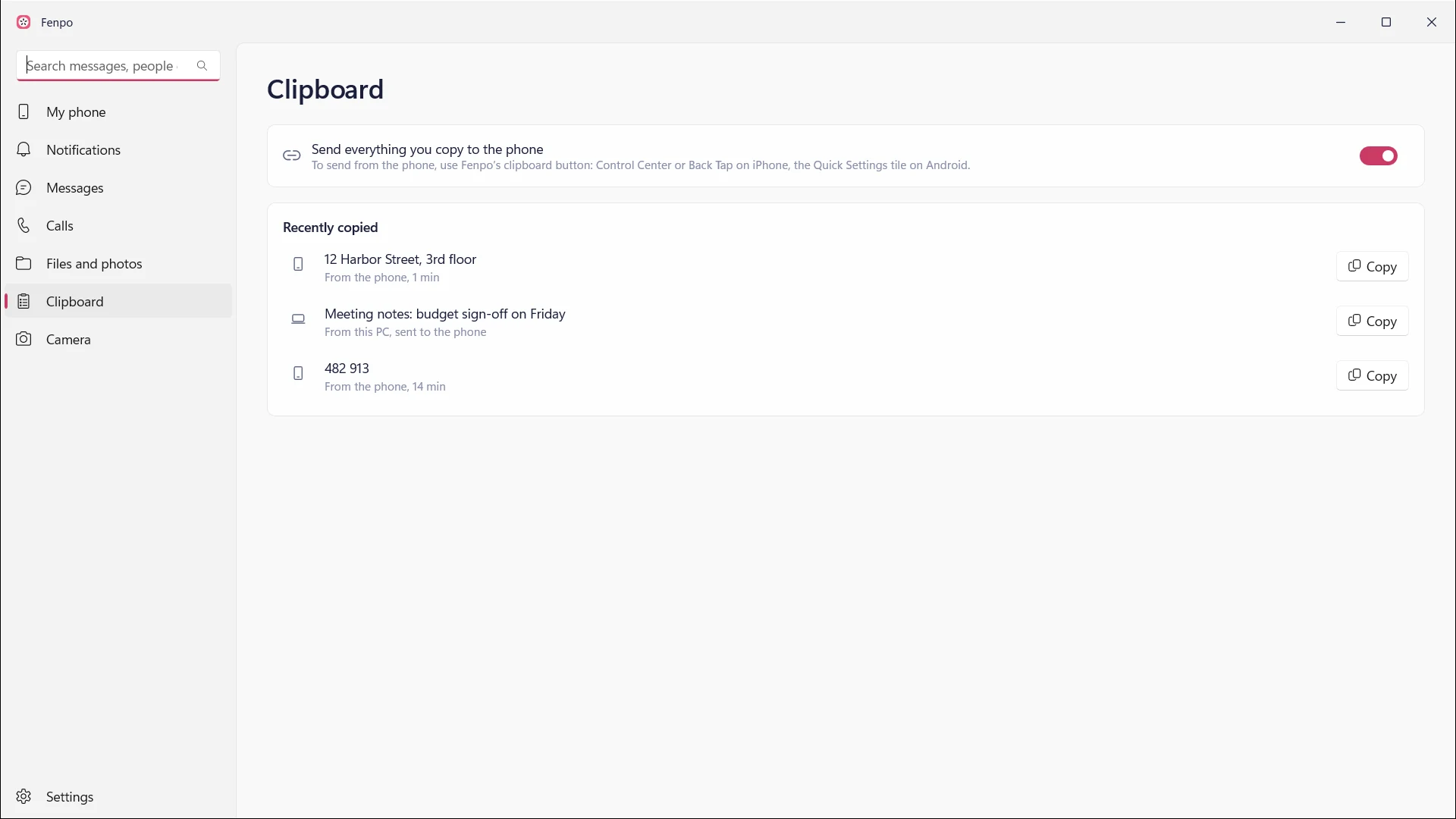
The call’s audio continues on the phone.Copy on the phone, paste on the PC. The other way round is just as easy.
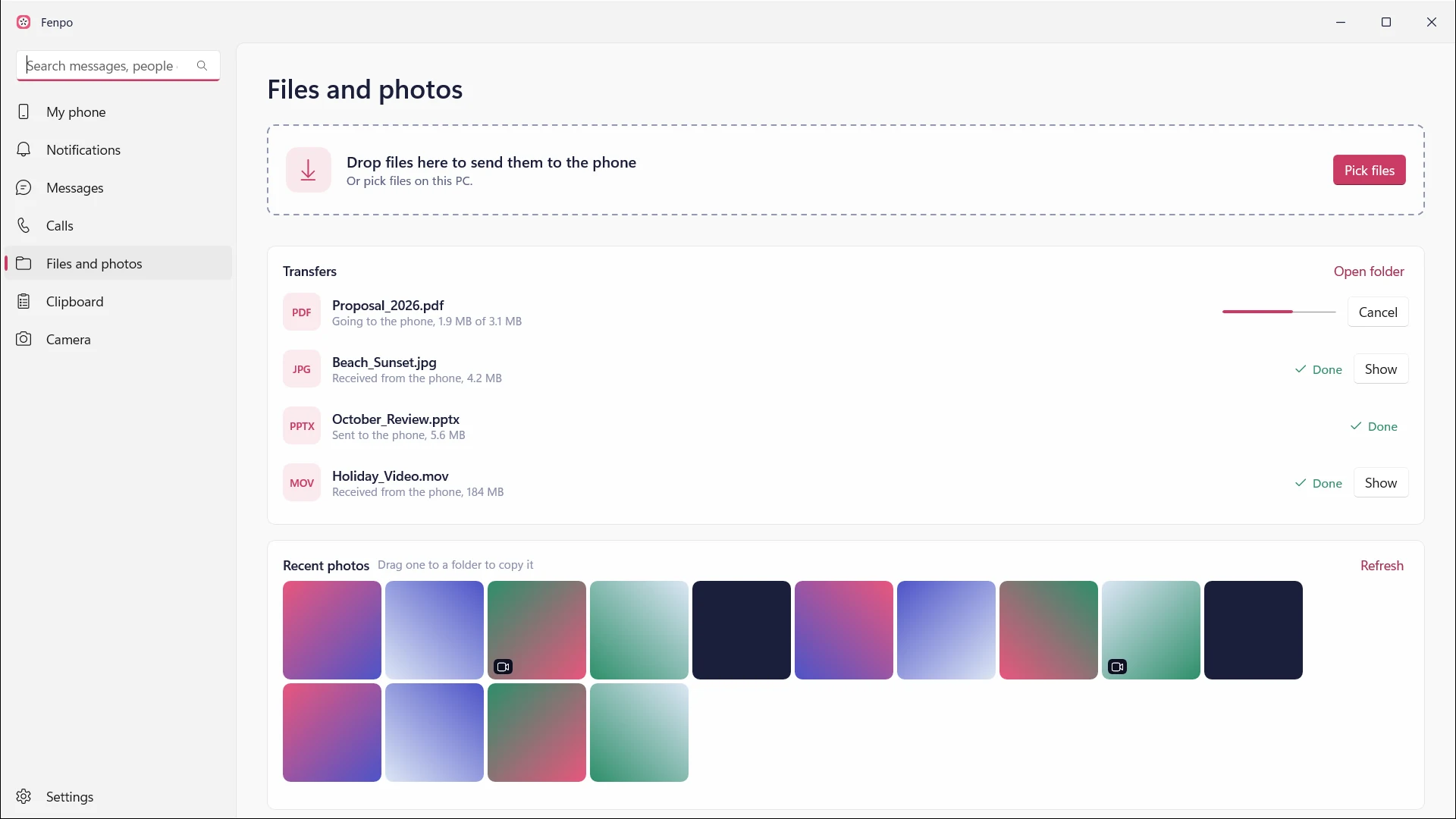
On iPhone it takes a single tap.Send a photo from the share menu and find it in a folder on the PC. Right-click in File Explorer to send to the phone.
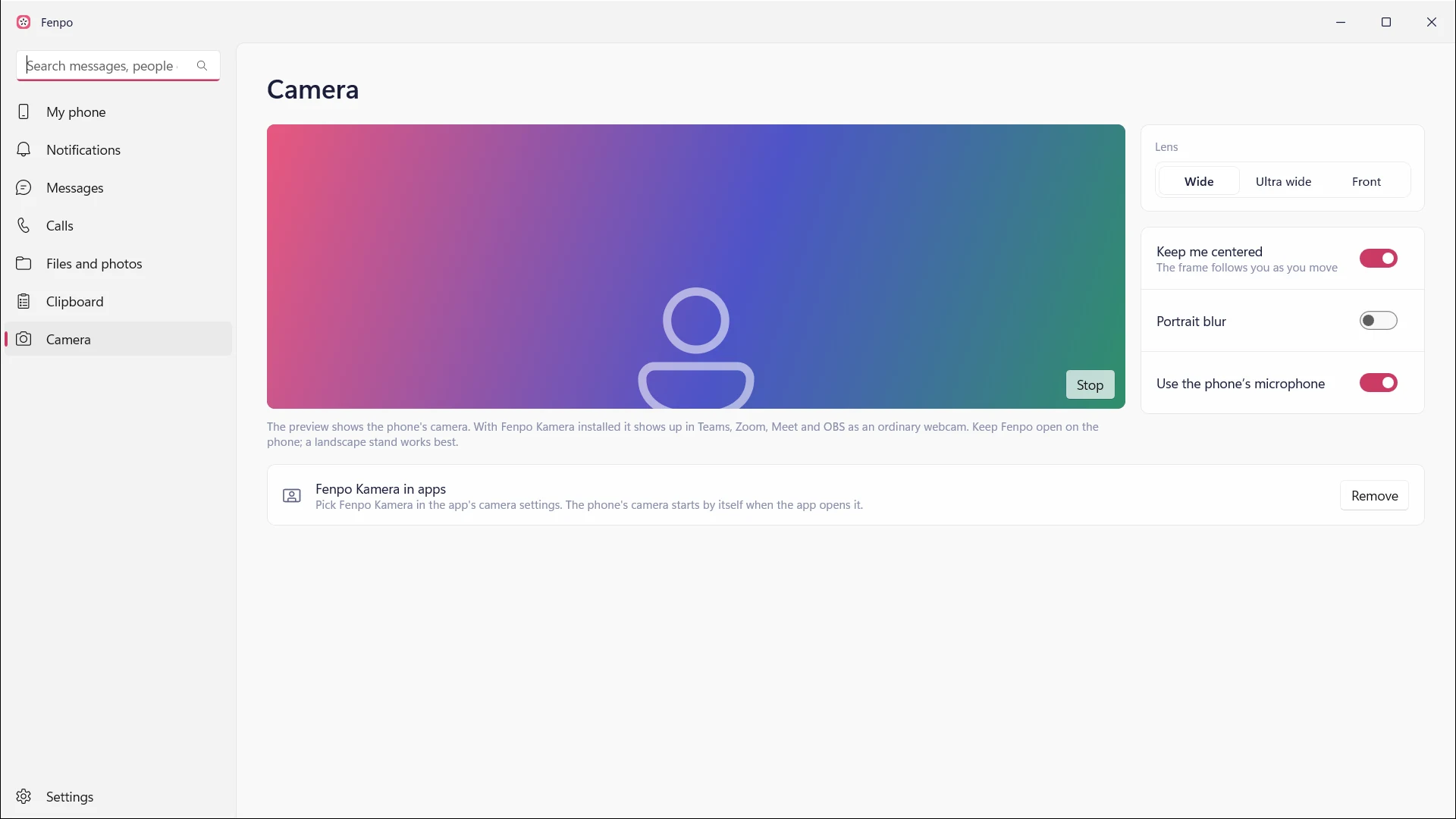
Over your local network. Works with LocalSend too.Your phone’s camera shows up as a webcam in Teams, Zoom and the browser.
Best with the phone on a landscape stand.Fenpo for Windows
Proximity lock
When your phone leaves the desk, the PC locks itself. When you’re back, your password is waiting; unlocking is always up to you.
And more
See your phone’s screen on the PC. Control Android with the mouse, give the iPhone your PC’s keyboard and mouse.
Lost it in the sofa again? Ring it from the PC.
Join your phone’s hotspot with one click, no password typing.
Turn the phone into a touchpad, a keyboard or a presentation remote.
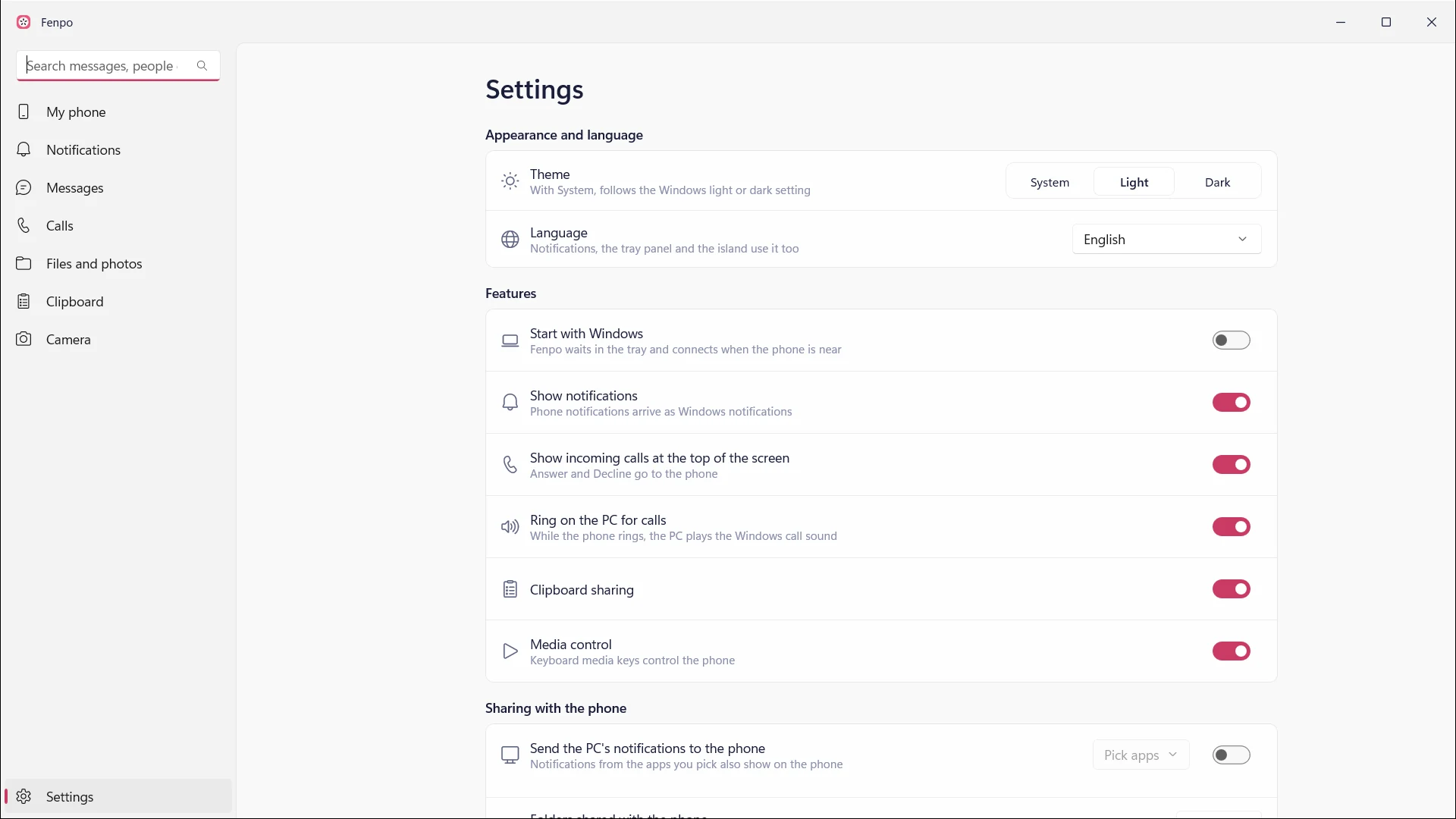
Control what’s playing on the phone with the PC’s media keys.
Open your PC’s folders in the phone’s files app and browse the phone’s photos from the PC.
Your phone’s charge sits in the tray, always in sight.
Privacy
Everything goes encrypted between your devices over Bluetooth and your local network. The internet is only used to download app icons.
Install Fenpo from the Microsoft Store and pair your iPhone in Windows’ Bluetooth settings. Notifications, messages and calls start arriving right away. For files, photos, clipboard and camera, install the Fenpo app on the phone and scan the QR code on the PC.
Not on iPhone for notifications, messages and calls; those work over Bluetooth without an app. Sending files and photos, the clipboard, the camera and screen mirroring need the free Fenpo app on the phone, coming soon to the App Store and Google Play.
Fenpo for Android is on its way and coming soon to Google Play. On Android you’ll also be able to reply to notifications in writing, manage your SMS and control the phone’s screen with the mouse.
Yes. Incoming calls appear at the top centre of the screen, in the Fenpo Island; answer or decline them from the PC. The call’s audio continues on the phone for now.
Yes. Fenpo Kamera shows up as a regular webcam in Teams, Zoom, Meet, OBS and the browser. Windows asks for administrator approval once, the first time you install it. Keep Fenpo open on the phone while it streams.
To no server at all. Fenpo has no server and no accounts; everything goes encrypted between your devices over Bluetooth and your local network. The internet is only used to download app icons.
Windows 11 22H2 or later on a PC with Bluetooth. iOS 18 or later on the iPhone.
No. Notifications, messages and calls work over Bluetooth. For files, clipboard and camera, both devices just need to be on the same Wi‑Fi network.
Yes. The code for the Windows, iPhone and Android apps is public on GitHub, so anyone can read what it does.
Download
Lives in the tray and steps forward when needed. Main window, tray panel and the Island.
Get it from Microsoft StoreiOS 18 and later. Notifications, messages and calls work even without the app.
Coming to the App StoreReply to notifications, manage your SMS, control the screen with the mouse.
Coming to Google Play